
Hisense Smart TV IPTV Subscription: Best Apps, Setup Guide & Installation Instructions
A Hisense Smart TV gives you access to a wide range of entertainment options, including live television, movies, TV series, sports, and on-demand content. With a compatible IPTV application and a legitimate IPTV subscription, you can enjoy internet-based television directly on your TV without needing a separate receiver.
If you are searching for a Hisense Smart TV IPTV subscription, this guide explains how IPTV works, how to check your TV’s compatibility, which apps to look for, and how to set up your service.
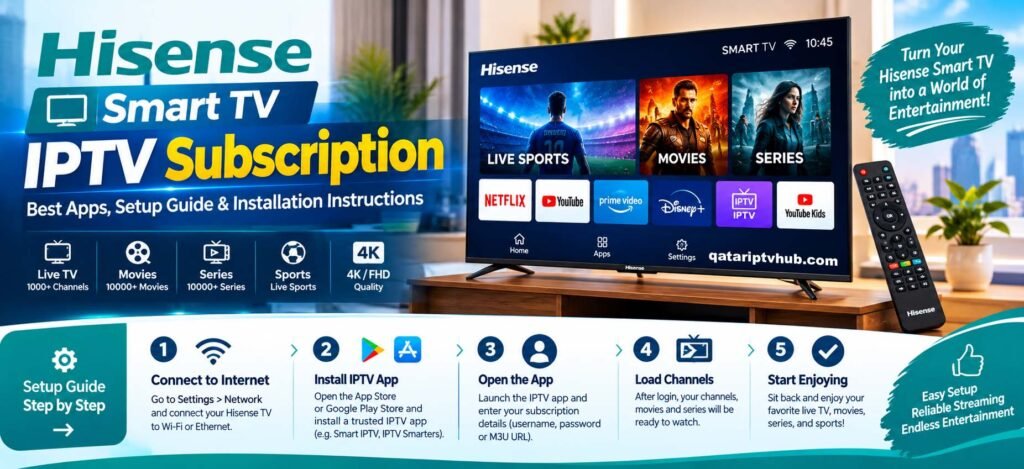
What Is IPTV on a Hisense Smart TV?
IPTV stands for Internet Protocol Television. It delivers television content through an internet connection rather than traditional terrestrial, satellite, or cable broadcasting.
Depending on your provider and subscription, IPTV services may include:
- Live television channels
- Movies and TV series on demand
- Sports and entertainment programs
- News and international channels
- Catch-up TV, where supported
The available content, streaming quality, and features depend on the service you choose. Always select a provider that has the appropriate rights to distribute its content.
Which IPTV Apps Work on Hisense Smart TVs?
Hisense televisions use different operating systems depending on the model, market, and year of manufacture. Common systems include VIDAA, Google TV, and Android TV. Some models use other platforms.
Before choosing an IPTV application, check which operating system your TV uses.
1. VIDAA Smart TV
Many Hisense TVs use the VIDAA operating system. These televisions have their own app store, and the selection can vary by model and region.
To check for an IPTV-compatible application:
- Connect your TV to the internet.
- Press the Home button on your remote.
- Open the Apps section or App Store.
- Search for a compatible IPTV player.
- Select an available app and install it.
- Open the app and follow its official setup instructions.
Not every IPTV application is available on VIDAA. Check the app’s compatibility before subscribing to a service.
2. Hisense Google TV
If your Hisense TV runs Google TV, you can search for supported applications through the Google Play Store or Apps section.
Installation steps:
- Press Home on your remote.
- Open the Apps section.
- Search for the application you need.
- Select the app from the results.
- Choose Install.
- Open the app and follow the on-screen instructions.
Google TV only allows installation of apps supported by the device and available in your region.
3. Hisense Android TV
Some Hisense models use Android TV. Open the Google Play Store, search for a compatible IPTV player, and install it if available.
The exact menus may differ depending on your TV software version.
How to Set Up an IPTV Subscription on Hisense TV
Once you have confirmed compatibility, follow these general steps.
Step 1: Connect to the internet
Open your TV’s network settings and connect to your home Wi-Fi. For a more stable connection, use an Ethernet cable if your TV supports it.
Step 2: Install a compatible IPTV player
Find a suitable application in your TV’s official app store. An IPTV player is software that plays content from a supported source; it does not necessarily provide channels or a subscription itself.
Step 3: Choose a legitimate IPTV service
Select a service that is authorized to provide the channels and programs you want to watch. Check its supported devices, subscription terms, content availability, and customer support.
Step 4: Enter your service details
Open the application and follow the provider’s official instructions. Depending on the app, you may need an account login or a supported playlist or service configuration.
Only enter your credentials into a trusted application. Never share your account password or activation details publicly.
Step 5: Start watching
After successful configuration, browse the content available under your subscription. Picture quality and playback performance depend on the source, internet speed, TV capabilities, and network conditions.
Common Hisense IPTV Problems and Solutions
IPTV App Is Missing
Check the TV’s operating system and region settings. Search the official app store and confirm that the application supports your model. An app available on Google TV may not be available on VIDAA.
IPTV Keeps Buffering
Restart your router and TV, check your internet speed, and close other applications using significant bandwidth. If the problem continues, contact your service provider.
IPTV App Will Not Open
Restart the TV, check for software updates, and install any available application updates. If necessary, reinstall the app using the official store.
Subscription Login Does Not Work
Confirm that your subscription is active and that the account details are correct. Ask your provider to verify device compatibility and account status.
My Hisense TV Does Not Support the App
Consider a compatible external streaming device, such as a Google TV streaming device, if supported in your region. Connect it to an HDMI port and install compatible apps through its official store.
Is IPTV Better Than Traditional TV?
IPTV can provide convenient access to internet-delivered television and on-demand entertainment in one interface. Traditional television services may be more suitable for people who prefer satellite, cable, or terrestrial broadcasts.
The best choice depends on your viewing habits, available internet connection, budget, and the content you are authorized to access.
Frequently Asked Questions
Can I use IPTV on any Hisense Smart TV?
Not necessarily. Compatibility depends on your TV’s operating system, model, region, and the application you want to use.
Do I need an IPTV subscription and an IPTV app?
For subscription-based services, you generally need an authorized content service and a compatible app or platform. Some apps are only players and do not supply channels.
Can I watch IPTV in 4K on a Hisense TV?
Yes, if your TV supports 4K, the content is available in 4K, the application supports it, and your internet connection is sufficiently fast.
Can I install IPTV apps on Hisense VIDAA?
You can install compatible apps available through the VIDAA app store. Availability varies, so check the store on your own TV.
Can I use IPTV without Wi-Fi?
You need an internet connection for internet-based television. If your Hisense TV supports Ethernet, you can connect it to your router with a network cable instead of using Wi-Fi.
How do I find my Hisense TV operating system?
Open Settings and look for System, About, or Support. Menu names vary by model. You can also check the model number and operating system in your TV’s manual.