
Firestick IPTV Subscription: How to Install, Set Up & Watch IPTV on Firestick
If you are looking for an easy way to watch live TV, movies, sports, entertainment, and other streaming content on your television, a Firestick IPTV subscription can be a convenient option when used with a legitimate IPTV service and compatible streaming application.
Amazon Fire TV devices are designed to run streaming applications through Fire OS, making them suitable for a wide range of entertainment services. Depending on your Fire TV model and operating-system version, available apps and installation methods may differ.
This guide explains how IPTV works on Firestick, what you need before starting, how to install a compatible IPTV player, how to activate your subscription, and how to troubleshoot common problems.
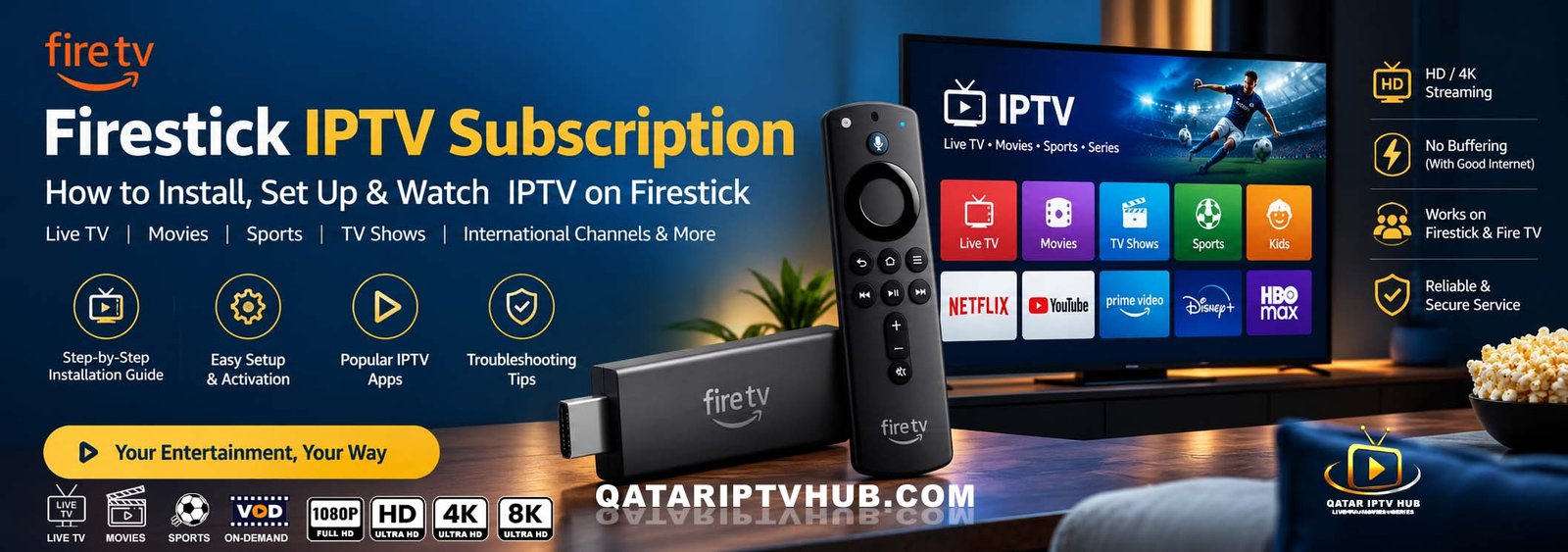
What Is IPTV on Firestick?
IPTV stands for Internet Protocol Television. Instead of receiving television channels through traditional cable, satellite, or terrestrial broadcasting, IPTV delivers television and video content through an internet connection.
A Firestick or compatible Fire TV device acts as the streaming platform. An IPTV player can then be used to access a service that you are authorized to use.
The basic process is:
Internet connection → Firestick → IPTV player → Authorized IPTV service → TV content
An IPTV player normally does not provide television channels by itself. Instead, it may connect to a subscription or content source supplied by the service provider.
What Do You Need for IPTV on Firestick?
Before setting up IPTV, prepare the following:
1. Amazon Firestick or Fire TV Device
You need a compatible Fire TV device connected to your television.
Amazon currently supports multiple Fire TV products, including Fire TV Stick models and Fire TV Cube devices.
2. Stable Internet Connection
A reliable internet connection is important for smooth streaming.
For HD and especially 4K content, your required bandwidth can vary depending on the video bitrate, resolution, network congestion, and service.
A wired Ethernet connection, where supported, can also be useful if Wi-Fi is unreliable.
3. IPTV Subscription
You need an IPTV service that you are legally entitled to access.
Your provider may give you one of several types of login information, such as:
- Username and password
- M3U playlist URL
- Xtream API credentials
- Portal/server information
- Activation code
The exact information depends on the provider and IPTV application.
What Do You Need for IPTV on Firestick?
Before setting up IPTV, prepare the following:
1. Amazon Firestick or Fire TV Device
You need a compatible Fire TV device connected to your television.
Amazon currently supports multiple Fire TV products, including Fire TV Stick models and Fire TV Cube devices.
2. Stable Internet Connection
A reliable internet connection is important for smooth streaming.
For HD and especially 4K content, your required bandwidth can vary depending on the video bitrate, resolution, network congestion, and service.
A wired Ethernet connection, where supported, can also be useful if Wi-Fi is unreliable.
3. IPTV Subscription
You need an IPTV service that you are legally entitled to access.
Your provider may give you one of several types of login information, such as:
- Username and password
- M3U playlist URL
- Xtream API credentials
- Portal/server information
- Activation code
The exact information depends on the provider and IPTV application.
4. Compatible IPTV Player
You also need a compatible IPTV application.
Some IPTV players are available through the Amazon Appstore, while other applications may have different installation requirements. Always download software from a trusted and legitimate source.
How to Set Up Your Firestick Before Installing IPTV
If your Firestick is new, complete the normal Amazon setup first.
Connect the Fire TV device to your television and power source, pair the remote, connect to Wi-Fi, and sign in with your Amazon account. Amazon’s current setup instructions follow this general process.
Once the Firestick is connected to the internet, you can begin installing compatible streaming applications.
Step 1: Connect Firestick to Your TV
Connect the Fire TV Stick to an available HDMI port on your television.
Then:
- Turn on your TV.
- Select the HDMI input used by the Firestick.
- Pair the Fire TV remote.
- Follow the on-screen setup instructions.
- Connect the device to your Wi-Fi network.
- Sign in to your Amazon account.
After setup is complete, you should see the Fire TV home screen.
Step 2: Check Your Internet Connection
Before installing an IPTV application, make sure your Firestick has a reliable internet connection.
Go to the Fire TV network settings and confirm that the device is connected to your Wi-Fi network.
If streaming frequently buffers, try:
- Moving the router closer to the Firestick
- Restarting the router
- Restarting the Firestick
- Disconnecting unused devices from the network
- Using a stronger Wi-Fi connection
- Using Ethernet where supported
Remember that buffering can originate from several places, including your home network, internet connection, application, server, or content source.
Step 3: Install an IPTV Player on Firestick
The installation process depends on the IPTV application you choose.
Method 1: Install From the Amazon Appstore
If your selected IPTV player is available through the Amazon Appstore, this is generally the simplest approach.
From the Fire TV home screen:
- Open Find/Search.
- Search for the name of the IPTV player.
- Select the appropriate application.
- Choose Get, Download, or the equivalent installation option.
- Wait for the application to install.
- Select Open.
The exact wording can vary between Fire TV versions.
Amazon provides an official application ecosystem for Fire TV, although available applications and supported features can change over time.
Installing an IPTV App Using an APK
Some applications may not be distributed through the Amazon Appstore.
Fire TV supports Android-compatible application technology on applicable Fire OS versions, and Amazon documents sideloading as a method for installing applications outside the Appstore.
However, users should be careful when installing APK files from outside official app stores.
Only use an APK obtained from a source you trust and have permission to use. Avoid unknown websites offering modified, cracked, or suspicious applications.
A malicious APK can potentially compromise your device or personal information.
For this reason, an Appstore version should generally be preferred when a legitimate version is available.
How to Install a Compatible IPTV App
Once you have selected your IPTV player, follow the installation instructions provided by the application’s official developer.
The general process is:
Firestick → Search/Apps → IPTV Player → Install → Open
After opening the application, you may see options such as:
- Login
- Add playlist
- Add user
- Xtream Codes
- M3U playlist
- Portal
- Server URL
- Activation
Select the option that matches the credentials supplied by your IPTV provider.
How to Activate an IPTV Subscription on Firestick
After installing the IPTV player, you normally need to connect it to your IPTV subscription.
The activation method depends on your provider.
Option 1: Username and Password
Some IPTV services provide:
Username: Your assigned username
Password: Your assigned password
Enter these details into the appropriate fields inside the IPTV application.
Option 2: Xtream API Login
If your provider supports Xtream-compatible credentials, you may receive:
- Username
- Password
- Server URL
Enter the information exactly as supplied.
Do not add extra spaces or change the server address.
Option 3: M3U Playlist
Some providers supply an M3U playlist URL.
The application may ask for:
Playlist name
and
M3U URL
Paste the URL exactly as provided by your service provider.
Option 4: Portal or Server URL
Certain IPTV systems use a portal/server address.
Your provider may give you a server address and device-specific activation information.
Follow the provider’s instructions rather than guessing the server settings.
How to Watch IPTV on Firestick
Once your subscription has been successfully connected, the IPTV application may organize content into different categories.
Depending on your service, you may see:
- Live TV
- Movies
- TV Shows
- Sports
- News
- Kids
- Entertainment
- International channels
- Favorites
- Electronic Program Guide (EPG)
The exact categories depend on the service and IPTV player.
Select a category and choose a channel or program to start playback.
How to Add an EPG to IPTV on Firestick
EPG stands for Electronic Program Guide.
An EPG provides program information such as:
- Channel name
- Current program
- Upcoming programs
- Program description
- Start and end time
Some IPTV providers automatically supply EPG information.
Others may provide a separate EPG URL.
If your provider gives you an EPG URL, enter it according to the IPTV application’s instructions.
A correctly configured EPG can make browsing live television much easier.
How to Set IPTV Favorites on Firestick
If your IPTV application supports favorites, you can create a personalized channel list.
For example, you may add frequently watched channels to:
Favorites → Live TV → Favorite Channels
This can save time when you have a large channel list.
Instead of scrolling through hundreds or thousands of channels, you can open your favorites and quickly find the channels you watch most often.
How to Watch 4K IPTV on Firestick
For 4K streaming, several factors need to work together.
You need:
- A Fire TV device that supports the required resolution.
- A compatible 4K television.
- A sufficiently capable internet connection.
- A service that actually provides the content in 4K.
- An IPTV player capable of handling the relevant stream.
- Appropriate HDMI and TV settings.
Amazon lists 4K-capable Fire TV products, including the Fire TV Stick 4K Max and other supported devices.
Simply having a “4K IPTV subscription” does not automatically make every channel 4K. The original content source must provide 4K video.
How to Improve IPTV Streaming Quality on Firestick
If IPTV is buffering, try the following troubleshooting steps.
Restart Your Firestick
Restarting the device can clear temporary system problems.
You can restart the device through the Fire TV settings or by following the restart instructions applicable to your model.
Restart Your Router
Turn your router off, wait briefly, and turn it back on.
Wait until the internet connection is fully restored before testing IPTV again.
Check Other Streaming Apps
Try another legitimate streaming service.
If other applications also buffer, the problem may be related to your internet connection or Firestick rather than the IPTV application.
Reduce Network Congestion
If multiple devices are downloading or streaming simultaneously, available bandwidth can decrease.
Try temporarily disconnecting devices that are not being used.
Clear the IPTV App Cache
If your Fire TV version provides the option, you can clear an application’s cache through its application settings.
This can help when an application becomes slow or behaves unexpectedly.
Frequently Asked Questions :
Can I use IPTV on Amazon Firestick?
Yes. Compatible streaming applications can run on supported Fire TV devices. Fire TV is based on Fire OS and supports compatible application technologies.
Do I need an IPTV app for Firestick?
Usually, yes. An IPTV player provides the interface used to connect to a compatible IPTV service.
Does an IPTV app include channels?
Not necessarily. An IPTV player and an IPTV content service are different things. The player may require a playlist, account, or service credentials.
Can I watch 4K IPTV on Firestick?
Yes, when your Fire TV device, television, network, IPTV application, and content source all support the required 4K format.
Why is my IPTV buffering?
Buffering can be caused by your internet connection, Wi-Fi conditions, network congestion, the IPTV application, the content server, or the video stream itself.
Can I install IPTV apps outside the Amazon Appstore?
Some Fire TV devices support sideloading compatible applications. Amazon documents sideloading as a method used to install applications outside the Appstore.
However, you should only install applications from trusted sources and avoid unauthorized or modified APK files.
Can I use the same IPTV subscription on multiple Firesticks?
That depends entirely on your provider’s terms. Some services permit multiple devices while others limit simultaneous connections.
Check your subscription conditions before using the same account on multiple devices.
Does IPTV require a VPN?
A VPN is not inherently required for IPTV technology. Whether you choose to use one depends on your privacy preferences, network configuration, and applicable laws and service terms.
Final Thoughts
Setting up an IPTV subscription on Firestick can be straightforward once your Fire TV device, IPTV application, internet connection, and subscription credentials are ready.
The basic process is:
1. Set up Firestick → 2. Connect to Wi-Fi → 3. Install a compatible IPTV player → 4. Enter your authorized subscription details → 5. Load channels → 6. Start streaming
For the best experience, keep your Firestick software and applications updated, use a reliable internet connection, and choose an IPTV service that is authorized to provide the content you want to watch.
Amazon’s Fire TV documentation confirms that supported Fire TV devices can run compatible applications and provides official documentation for application installation and management.